Showing posts with label Youtube. Show all posts

Friday, February 7, 2014

New GUI App for Youtube-dl

(UPDATE: Newer versions of PPC Media Center look somewhat different than the screenshot below and have additional features. The download link at the bottom has been updated to the latest version.)

I ought to complain more often. Just a few weeks ago I wrote a post about Vevo branded videos on Youtube breaking third party downloaders. Youtube-dl was the only one that worked, and it being command line, was slightly inconvenient. Well, lo and behold, good fortune knocked on my door (sent me email) and Adam A. left me a cool new Applescript app called PPC Media Center (download link at bottom). It's a simple and elegant GUI frontend for youtube-dl, and I can report on good authority that it's awesome.


Basically it works by copying a video link to the clipboard, launching the app, and pasting the URL in the text field. You can also assign a hotkey (with a tool like Spark) and use it to launch PPCMC QuickLaunch.app which makes the URL pasting automatic. More on that in the documentation. Either way, you'll see three buttons, all of which are fairly descriptive. From my testing on Youtube, the download and streaming buttons will give you choices of quality and then you're on your way. Streaming opens in Quicktime (Perian plug-in recommended), and the download button opens a Terminal window to show your progress. The "Check for Updates" button did just that and asked my administrative password to update youtube-dl in my /usr/local/bin.

All that and a cool icon.

Another cool thing, this being Applescript, is you can edit the script inside the app package with Script Editor.app. There's a little about adding site quality profiles in the documentation, and I wonder if it's super complicated to change the player from Quicktime to VLC or Mplayer. As the documentation notes, if you do make changes use the "Save" and not "Save As" command to avoid damaging the app bundle, and keep a backup copy of the original.

Download PPC Media Center here:

(1/20/2020: Final update - universal binary. Consult the Read Me for all the updated features.)

http://www.mediafire.com/file/1ukk0tw6sj129m0/PPCMediaCenter.zip/file

One more note, you may notice on the right I've added a new link to my blogroll. It's Mac OS 9 Lives, and it has a special focus on audio workstations and music producing which was always a strength of the classic Mac OS and still is. They also have an active forum section, so go check them out!

Sunday, January 12, 2014

Vevo Videos on Youtube

For a few months now you may have noticed Vevo titles on Youtube aren't working with Mactubes and a number of Greasemonkey scripts. If you like watching music videos, this puts a serious crimp on things as most "official" video releases are Vevo vids. Right now, the only third party tool I know of that can get around this is youtube-dl. So install* it if you don't have it, or update your copy with:

youtube-dl -U

With the newer version you can either download the videos or retrieve the links and stream them through a player like Mplayer (see Some Cross Platform Flash Alternatives). Both methods work.

*On the download page, if you don't have curl or wget, you can just click the download link at the top and then move it to your /usr/local/bin before running the chmod command. It can also be installed with Tigerbrew or Macports.

Tuesday, September 11, 2012

Yet Another Flash Alternative

[UPDATE: Youtube broke quvi. Waiting for an update... A new version (0.4.8-3) of libquvi-scripts has migrated to Wheezy which fixes the Youtube problem, so you can update your repositories and reinstall]

Since myself and others have written about the thousand or more flash alternatives out there, I thought I'd add one more to the mix. I've discovered a new tool for Linux called quvi. It works from the command line and streams Youtube videos to your player of choice. It basically works like this:

Install quvi, create the file ~/.quvirc and add:

exec = "yourplayer %u"
format = your preferred format

where yourplayer can be vlc or smplayer or whichever. I prefer to run mplayer from the command line with arguments, so my exec line is "mplayer -really-quiet -framedrop -cache 8192 -cache-min 10 %u". (EDIT: if mplayer's picture is lagging behind the sound, add the argument "-lavdopts skiploopfilter=all" and choose a WebM format instead of mp4 as those have less pixelation when skipping the loop filters)

For your preferred format, typical Youtube formats are fmt18_360p, fmt22_720p, and fmt37_1080p, which play mp4s in those resolutions (WebM videos are fmt43_360p, fmt44_480p, fmt45_720p, and fmt46_1080p, and flv videos are fmt5_240p, fmt34_360p, and fmt35_480p). My preferred format is fmt18_360p.

After saving the file, playing videos is as simple as copying the video URL from your browser (don't forget the http://) and then pasting it in a terminal window in quotes after the quvi command like this:

quvi "Youtube URL"

Incidentally, to paste something in an xterm or aterm window, middle-click while the mouse cursor is over the terminal window.

A full list of available formats can be found with:

quvi "Youtube URL" --query-formats

See much more at quvi's man page. It's supposed to support other sites besides Youtube, but I haven't tested them. Also, a similar command line tool for saving videos to disk is called cclive.

When using quvi with mplayer, I find this the most cpu-efficient way to waste time, I mean, watch Youtube videos, and I can even watch them without frame-skipping on a G3 laptop, something I couldn't say for Mactubes.

Sunday, January 22, 2012

Viewing Youtube in Mac OS 9

As long as we're talking about OS 9, Dr. Dave alerted me to a couple of Japanese-authored apps for viewing Youtube and flv files in 9.2.2 (I didn't test these in earlier systems). The instructions and interface are written in Japanese, so it's a little confusing if you don't speak it, but I managed to more or less work it out.

(UPDATE: The YTBrowser9 link below is an outdated version. Try this new version here.)

They're called YTBrowser9 and FLVPlayer9. You also need a Flash browser plug-in, the one I tested with was version 7.

For YTBrowser9, after downloading and unpacking double click on it and it'll ask which browser you're using. Since I'm using Classilla, I clicked on Mozilla. Then, when you click through a couple of other boxes in Japanese and click cancel when it asks you to enter a Youtube url, Classilla should open up a welcome screen, again in Japanese. Find a link on that page that goes to an index file. Once you've found the index, you should see a red bar at the top with links to search, preferences, history, and a few others. Click on search, enter a search phrase, and then once you see a video you want to watch, copy its link, then navigate back to the index and click "?? URL" (its full url is "ytbb://www.youtube.com/dialog") and paste your link. Then you should see something like this:

Photobucket

Notice the download button. You need javascript enabled to use it with "Save Link Target As..." for downloading.

To make YTBrowser9 easier to use, I added bookmarks for the search and enter URL links. I'm not sure if this is exactly how you're supposed to use it, but that happens when your Japanese is as rusty as mine, har.

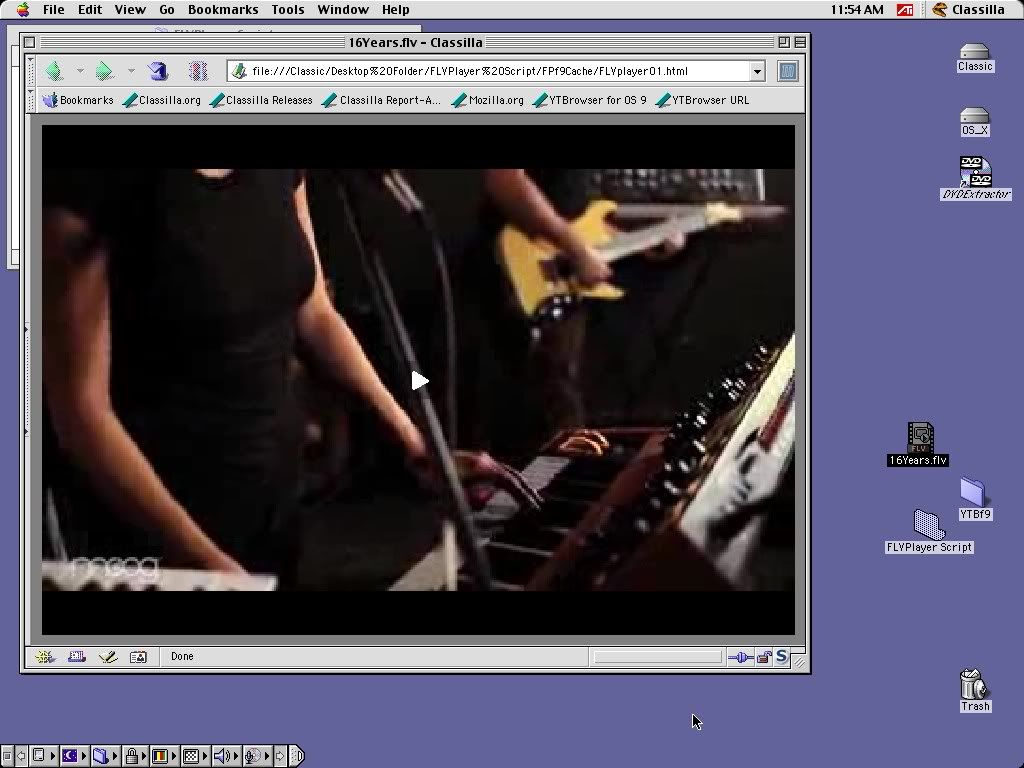
As for FLVPlayer9, it apears to be a simple drag and drop application. Just take a saved FLV file and drop it over the app, then it'll open it in a web browser window.

Photobucket

One final note, I notice the most recent version of Classilla defaults to a site's mobile page by setting its user agent to a Nokia mobile device. Really cool move. Makes Youtube and other sites zip. Though you can change it back to "normal" on a site-by-site basis via cookies, or globally by changing the user agent.

UPDATE: It looks like YTBrowser9 is similar to MacTubes in that you have to downlaod a new version whenever Youtube changes something in their url protocol.

Wednesday, December 14, 2011

Download Vimeo Videos

For the first time a video on Vimeo.com lured me to their website where, as a Vimeo newbie, I was confronted with the PowerPC conundrum of having flash installed but it being so crappy it made the video unwatchable. So I thought, there's Mactubes for Youtube and ways to convert flash to .mp4 on Youtube. Maybe there's the same for Vimeo. And after a little searching I found three (three!) reliable ways to download Vimeo videos as .mp4's.

The first is www.downloadvimeo.com. It's just a simple website where you paste the video url into the download field and it downloads the .mp4 to your default download folder. Simple, though this being a website, you never know if it'll disappear overnight, so I went looking for an application or Firefox add-on that'll do the trick, and indeed there are two (two!) Firefox add-on solutions.

First is FlashVideoReplacer. It works on Youtube and other streaming sites as well as Vimeo, and it gives you the option of watching the vid either embedded with the Quicktime plug-in, or you can also download the .mp4 to your hard drive. For embedded playback you need your Quicktime plug-in enabled.

The second add-on is a Greasemonkey script called Free Youtube! Also works with Youtube as well as Vimeo. When you install it, instead of the embedded video you get a simple download link in its place. Downloads the .mp4 to your hard drive, and that's that.

And there's 270 more words dedicated to getting around flash on PowerPC. They're gonna have to build the modern day equivalent of the Library of Alexandria to store it all.